 MintPriced
Home · Features
Screen by screen
What each MintPriced screen is for
The screenshots on this page are the app’s own screens. The result, confirm, value and dark-theme shots are all the same coin: a 1964 United States half dollar. Nothing below is a grade or a price for that coin.
Result
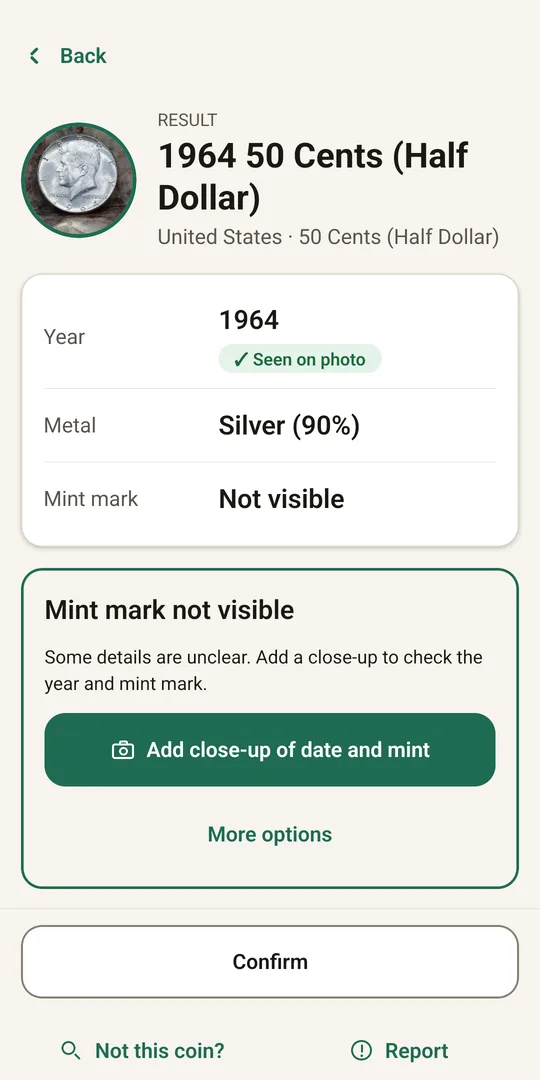
The result names the coin as “1964 50 Cents (Half Dollar)” and the country as United States. Year is 1964 with a check that says “Seen on photo.” Metal is Silver (90%). Mint mark is “Not visible.”
Under that, a box says the details are unclear and offers “Add close-up of date and mint.” More options sits beneath it. Confirm is still on the screen, so you are not blocked, but you have been told the mint mark was not read. At the bottom: “Not this coin?” and Report. Use Report when the country or the denomination is the wrong coin, not when you merely need a closer photo of the date. Lighting for that closer photo is in how to photograph a coin.
Confirm year and mint mark
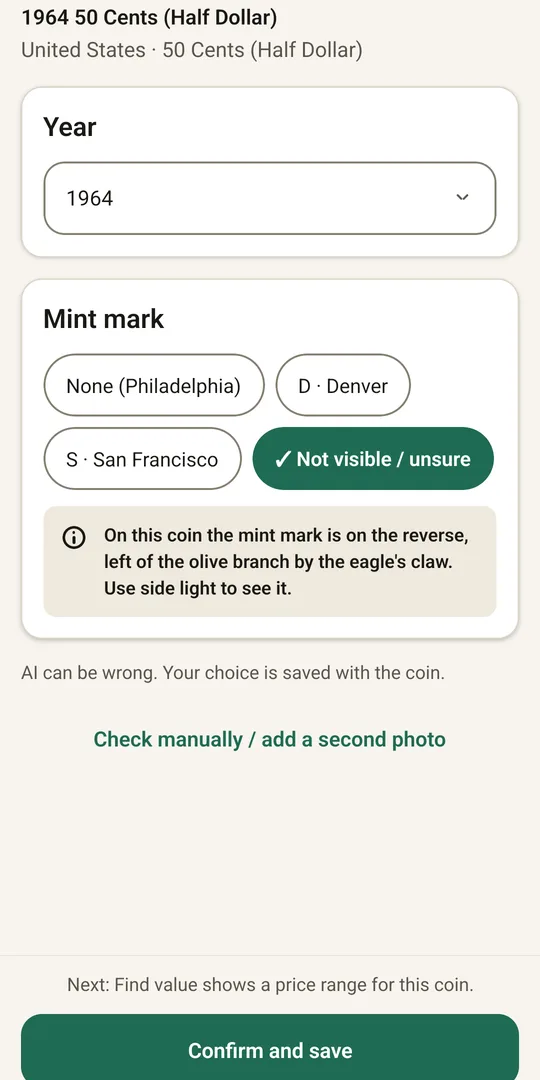
Year is a field you can change. It opens as 1964 because that is what was seen. Mint mark is a set of choices for this coin: None (Philadelphia), D · Denver, S · San Francisco, and Not visible / unsure. In the screenshot, Not visible is the one selected.
The hint is specific to this half dollar: “On this coin the mint mark is on the reverse, left of the olive branch by the eagle’s claw. Use side light to see it.” That matches a 1964 Kennedy half, whose mint mark was still on the reverse. From 1968 the mark moves to the obverse. The map of those moves is where the mint mark sits.
Two lines under the choices matter more than the buttons. “AI can be wrong. Your choice is saved with the coin.” And “Check manually / add a second photo.” Confirm and save is the green button. The next line says Find value shows a price range for this coin. If you save “Not visible,” you should expect the value screen to refuse a number. That is what it does.
Find value
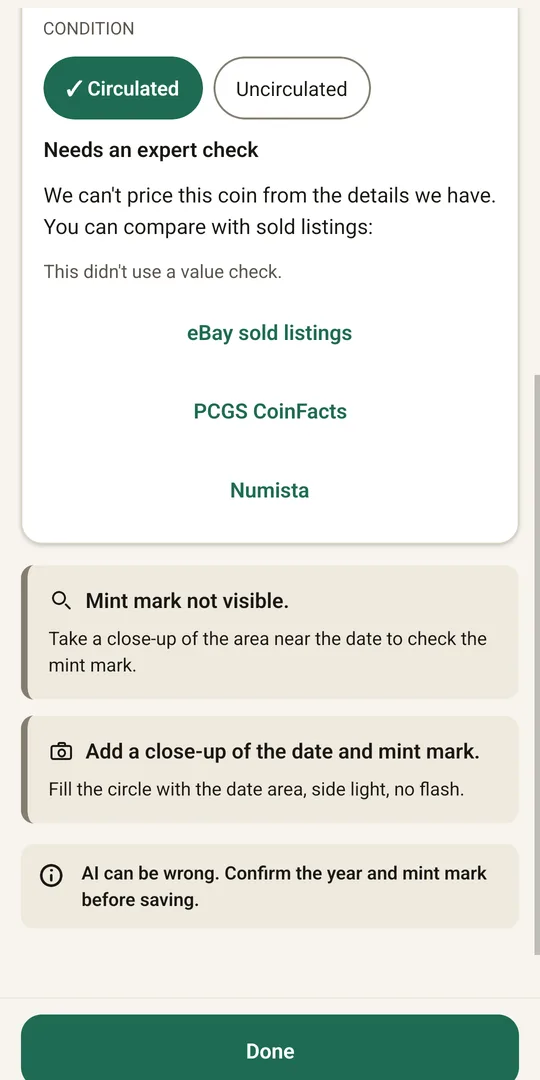
Condition is Circulated or Uncirculated. There is no numeric grade. With the mint mark unread, the panel says “Needs an expert check” and “We can’t price this coin from the details we have.” It offers sold listings, PCGS CoinFacts and Numista so you can compare outside the app. Then: “This didn’t use a value check.”
A value check is spent when the app actually returns a range. Free includes 3 a month. Pro includes 30. A refusal is not a range and, on this screen, did not cost a check. Ranges, when they exist, are estimates, not offers. Read why a value is a range before you treat one as a selling price. Pricing lists the monthly counts.
Collections and the weekly streak
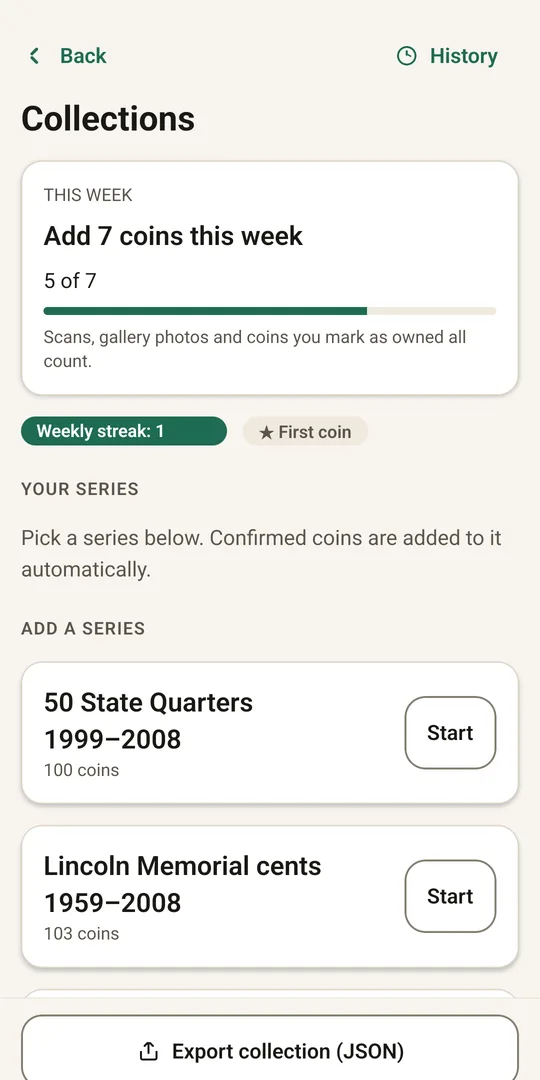
The collections screen is local. “This week” says “Add 7 coins this week,” and the screenshot is at 5 of 7. The caption under the bar: scans, gallery photos and coins you mark as owned all count. A weekly streak chip shows 1, next to a “First coin” badge. Badges and the streak have no cash value. The terms say they cannot be bought, sold or exchanged.
Under “Add a series” you pick what to track. Shown here: 50 State Quarters, 1999–2008, 100 coins, and Lincoln Memorial cents, 1959–2008, 103 coins. Confirmed coins are added to the series you picked. Export collection (JSON) is at the bottom of the screen. Free tracks 2 series. Pro tracks every series the app offers. The design list those series belong to is the US coin series overview.
Series slots
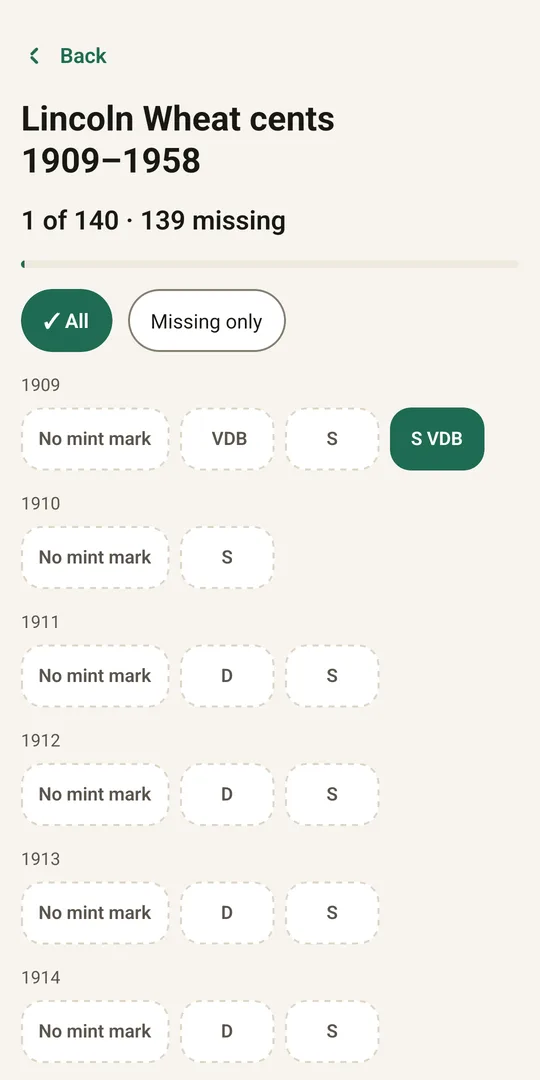
Open a series and you get one chip per date and mint. Lincoln Wheat cents, 1909–1958, is “1 of 140 · 139 missing.” You can show all slots or missing only. For 1909 the chips are No mint mark, VDB, S, and S VDB. S VDB is the filled one in the screenshot. 1910 has No mint mark and S. 1911 through 1914 show No mint mark, D and S.
That 1909-S VDB chip is a slot in a checklist. It is also one of the dates collectors alter. The app marking it owned means you confirmed a coin into that slot. It does not mean the coin was authenticated. Key dates and the Wheat cent guide are the warning next to this screen.
History and export
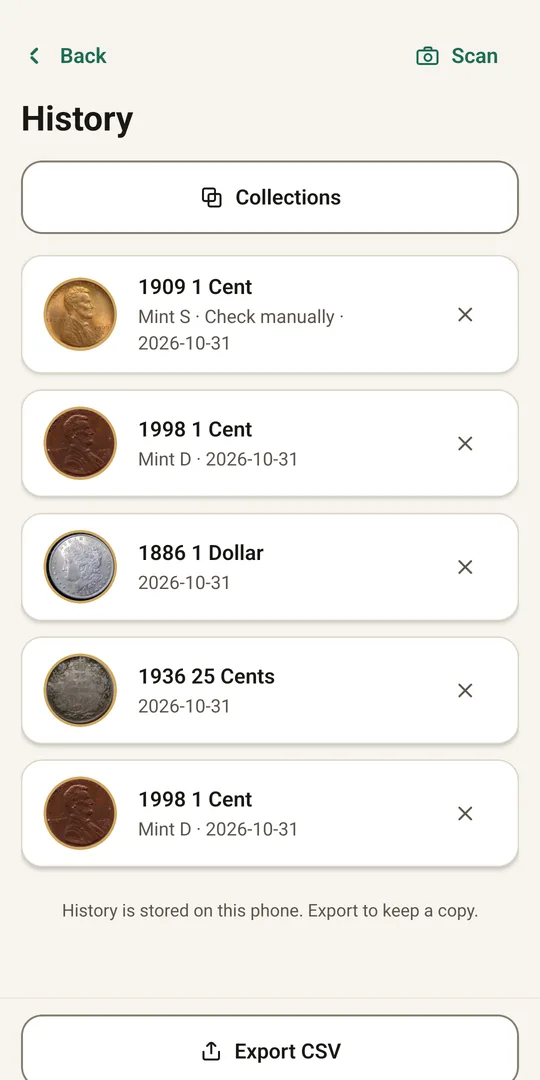
History is a list of saved scans on this phone. The screenshot includes a 1909 1 cent with “Mint S · Check manually,” a 1998 1 cent with Mint D, an 1886 1 dollar with no mint line, and a 1936 25 cents. The footer of the screen says history is stored on this phone and that you should export to keep a copy. Export CSV is the button.
There is no cloud collection to sign into from a second phone. A CSV of history and a JSON of the collection are the copies you can move. Settings also has Export, which the support page points at if you cannot find the button.
Dark theme
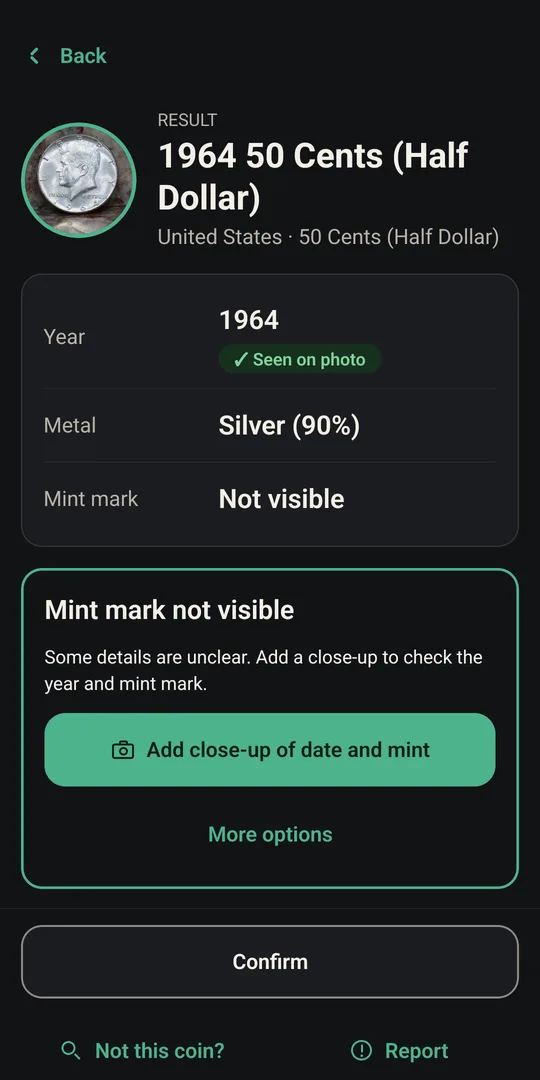
Dark theme is the same result, not a different reading. The 1964 half still shows year seen on the photo, metal as 90% silver, and mint mark not visible, with the same close-up prompt. The theme follows the phone. It does not change what was read.
What is deliberately missing
No account, no name, no email. A random install ID is how the free limits and a subscription are tied to the app. No ads and no ad or tracking SDK. The app does not assign MS-65, does not certify a doubled die, and does not tell you a coin is genuine. Language in the interface is English. Phones: Android, from Google Play. An iPhone version is not available yet.
Photos leave the phone for the identification: our server and Google’s Gemini service. They are deleted within 1 hour unless you opt in to “Share photos to improve results,” which is off. Details are in the privacy policy. The only install steps are on Install.
Install MintPriced
Same listing every time: MintPriced: Coin Identifier, package com.roman.mintpriced. Then use How to for the first coin.